 Keet Support
Contact Book 📓
The Contact Book lets you privately save and manage known peers inside the app, making it easier to find people and start conversations when needed.
Unlike DMs, contacts are personal and one-way — adding someone to your Contact Book does not require their approval and does not automatically create a chat with them. This works similarly to saving a phone number in your phone’s contact app, where you decide who appears in the list.
What is the Contact Book?
The Contact Book is a private list of users you choose to save for later access.
You can:
- Save users as contacts
- Search and manage your contacts
- Quickly start a DM request from your Contact Book
- Keep contacts synced across linked devices
Your contacts are stored locally on your device to help maintain privacy.
How to Add a Contact
You can add contacts in several ways:
- Add users directly from the Contact Book screen by searching for a username manually or scanning the profile QR code
- Select any user from the group member list and select 'Add Contact' on their profile page
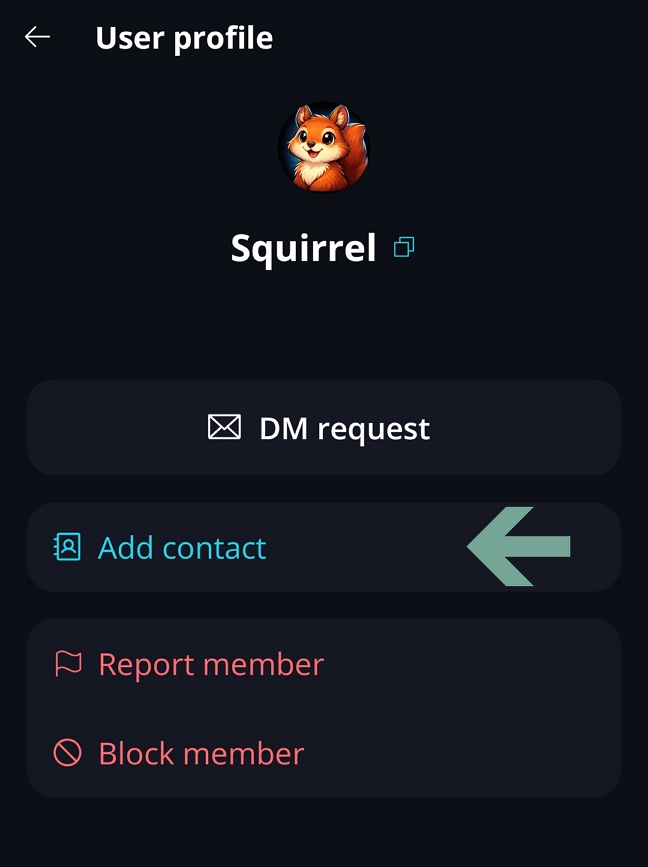
Once added, the contact appears in your Contact Book immediately.
Viewing Your Contacts
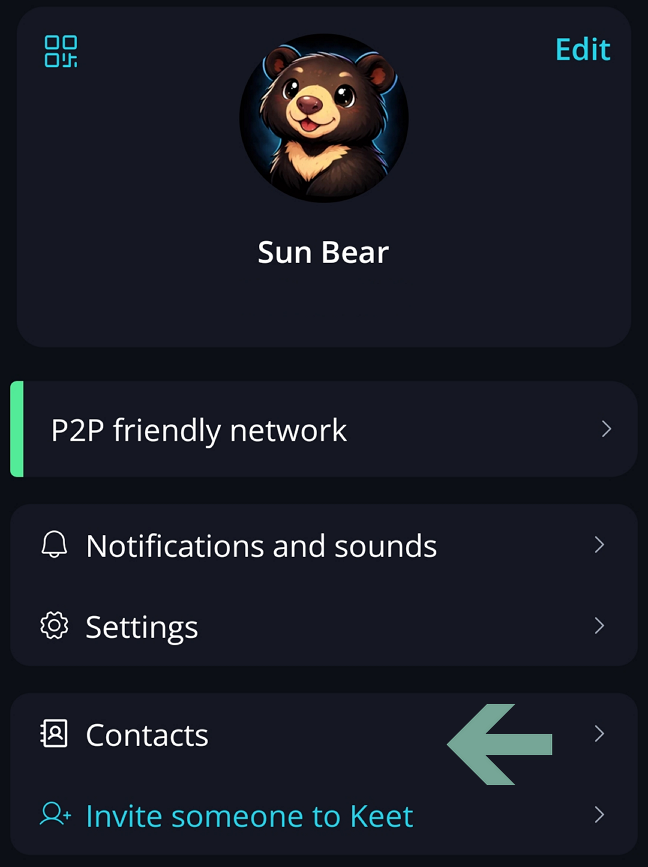
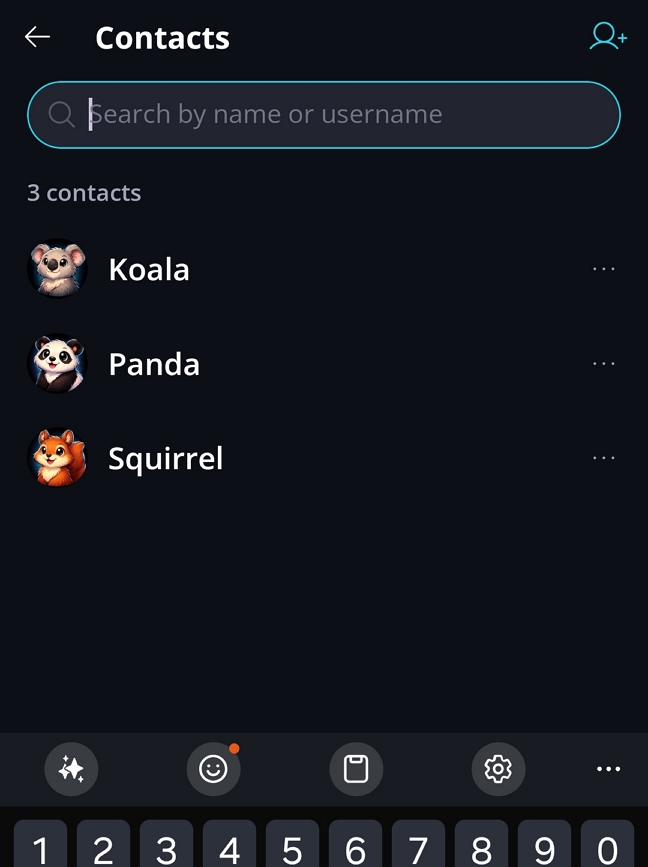
Go to Profile / Contacts to view all saved contacts.
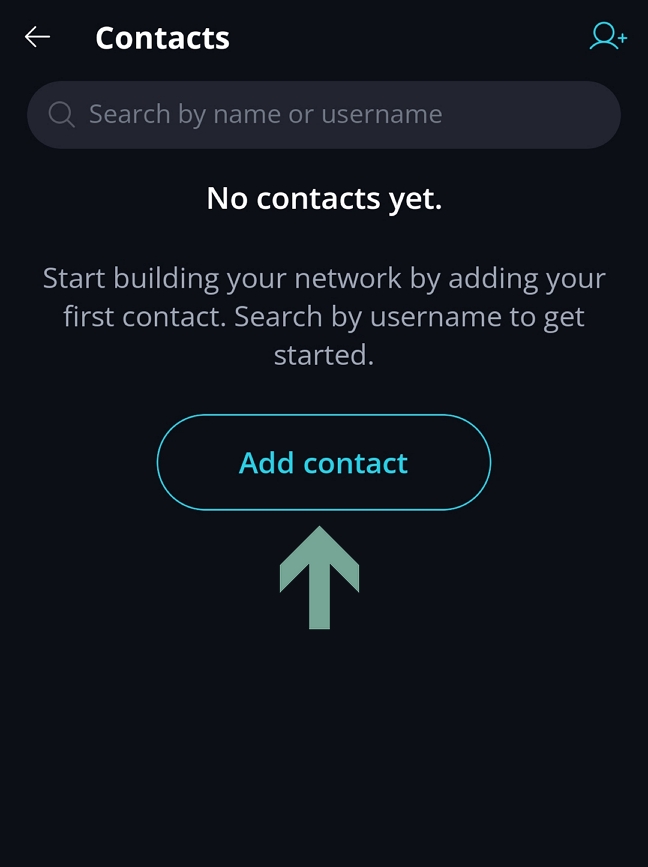
If you don't have contacts yet, click 'Add contact' button and search for peers by their username or scan their QR profile code.
Searching Contacts
You can search within your Contact Book using:
- Display name
- Username
Removing Contacts
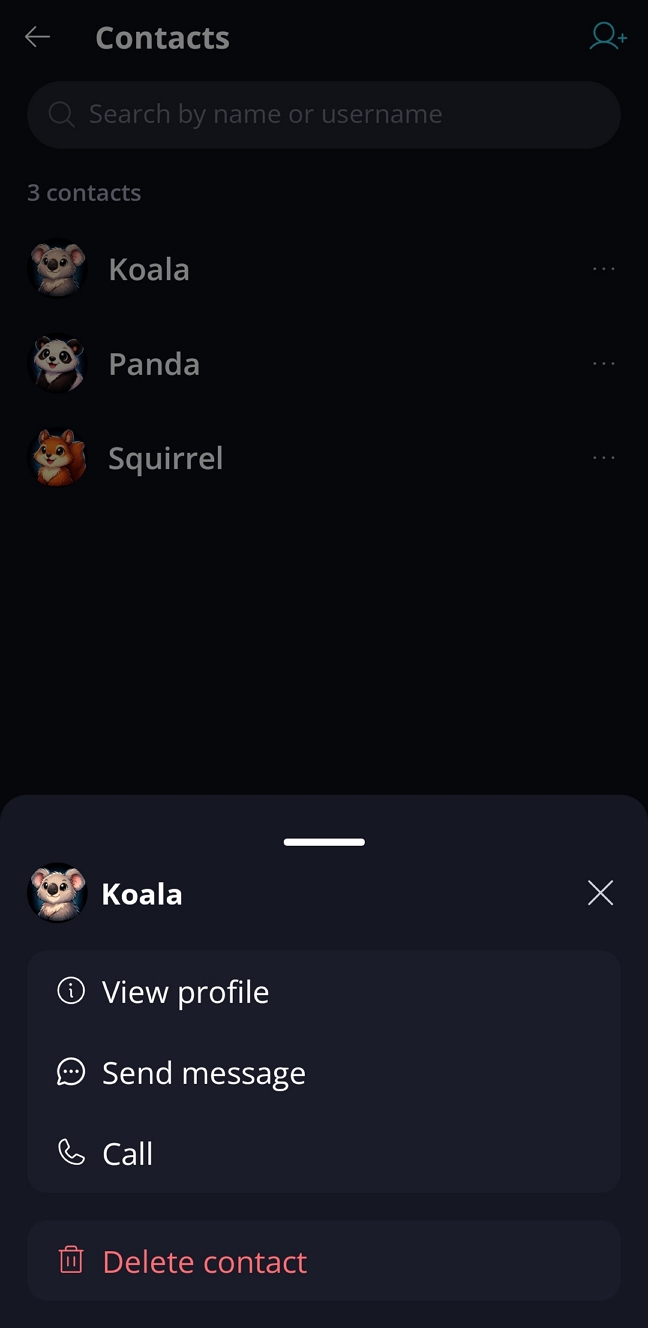
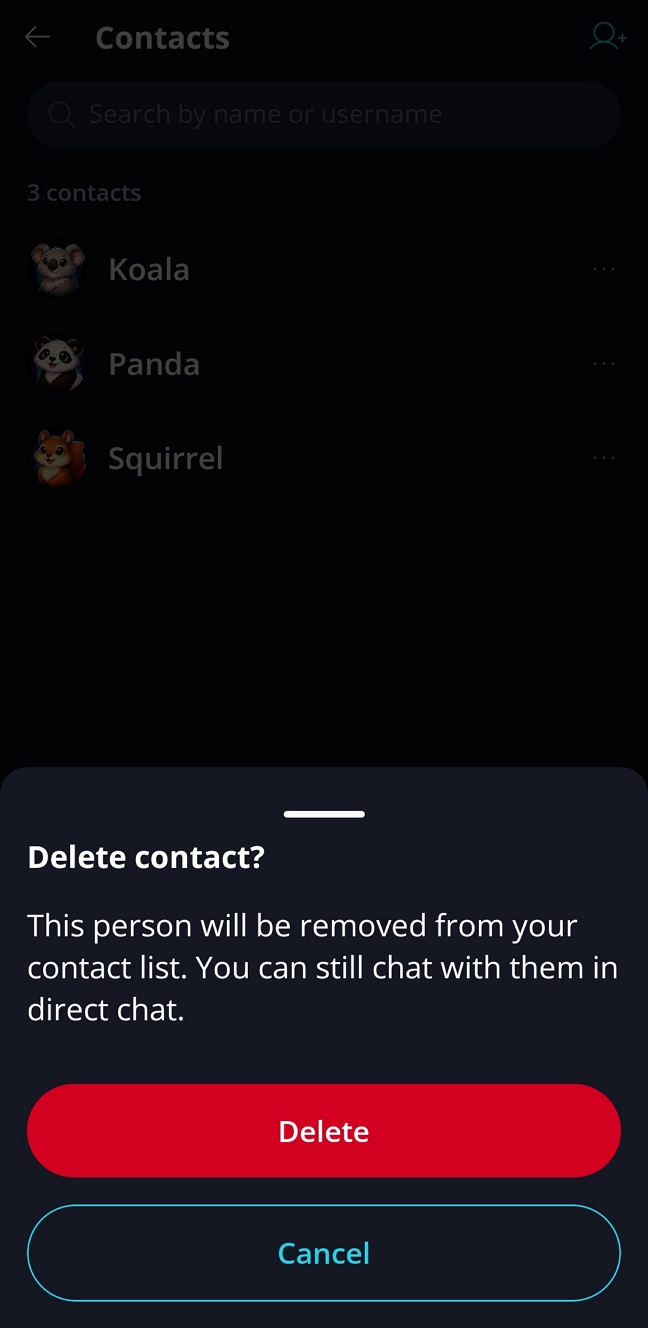
Go to Profile / Contacts to view all saved contacts. From here, you can review and remove any of them.
Please note that contacts and DM chats are separate lists.
- Removing a contact does not delete an existing DM chat
- Leaving or deleting a DM does not remove the contact